This article explains how to request an external review from a guest, how the guest can access and approve the document, and which permission must be enabled in the workspace for this feature to work.
Step 1: Send the External Review Request
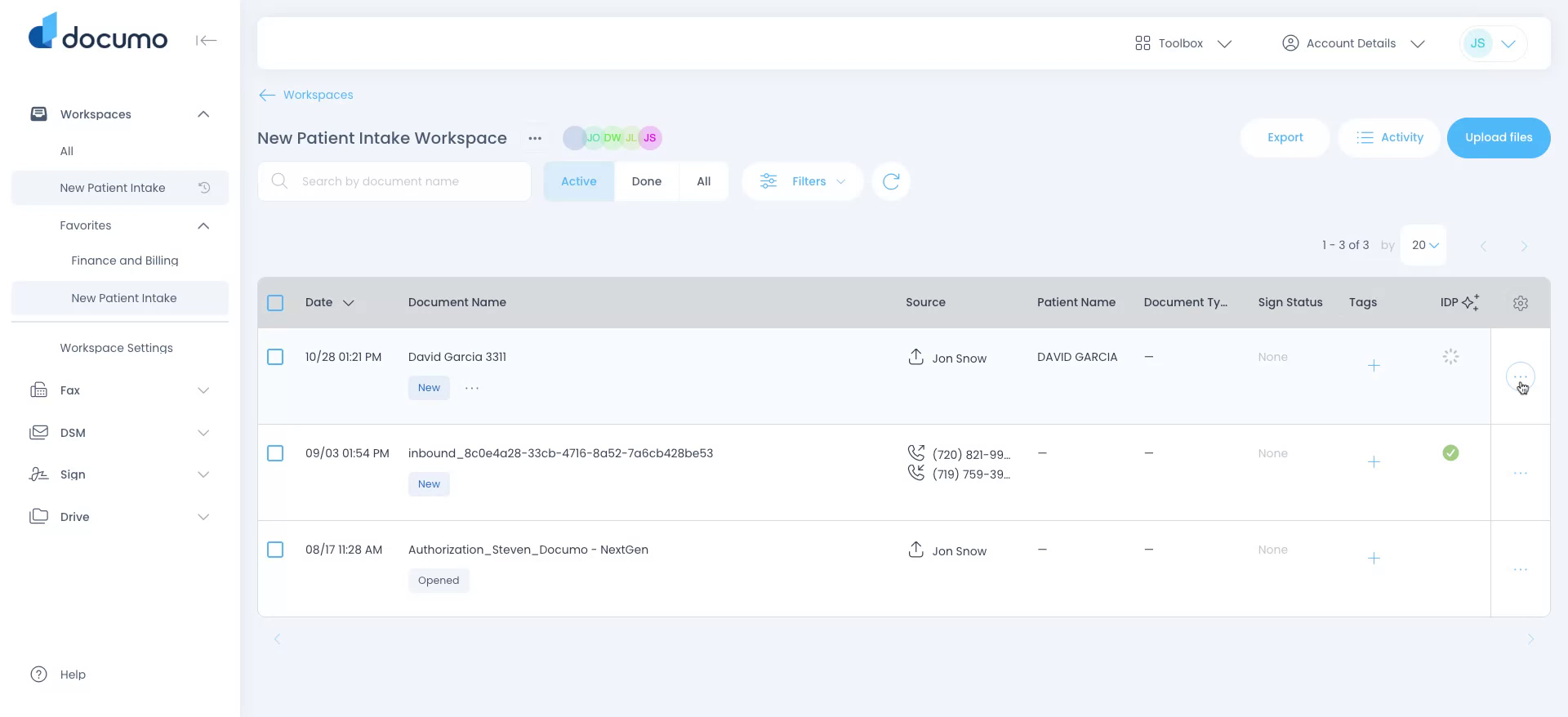
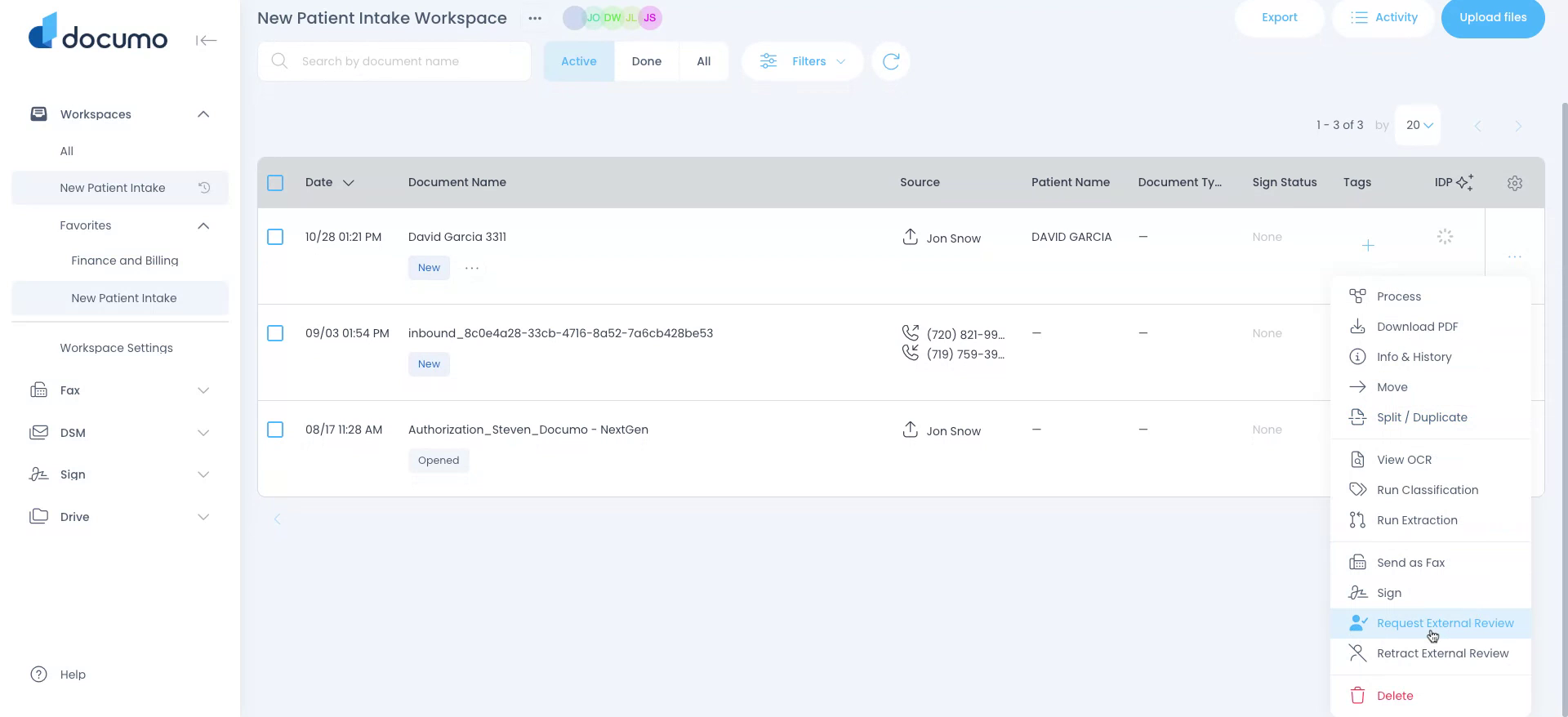
Click the three dots next to the document to open the options menu.
Then click Request External Review.
Step 2: Add Reviewer and Send Request
Add the email address of the external reviewer, their name, and expiration, then click Request Review to send the invitation.
Step 3: Open the Review Link from the Email
The reviewer receives an email containing a secure link to the document that requires review and approval. They should open the email and click the provided link to access the document.
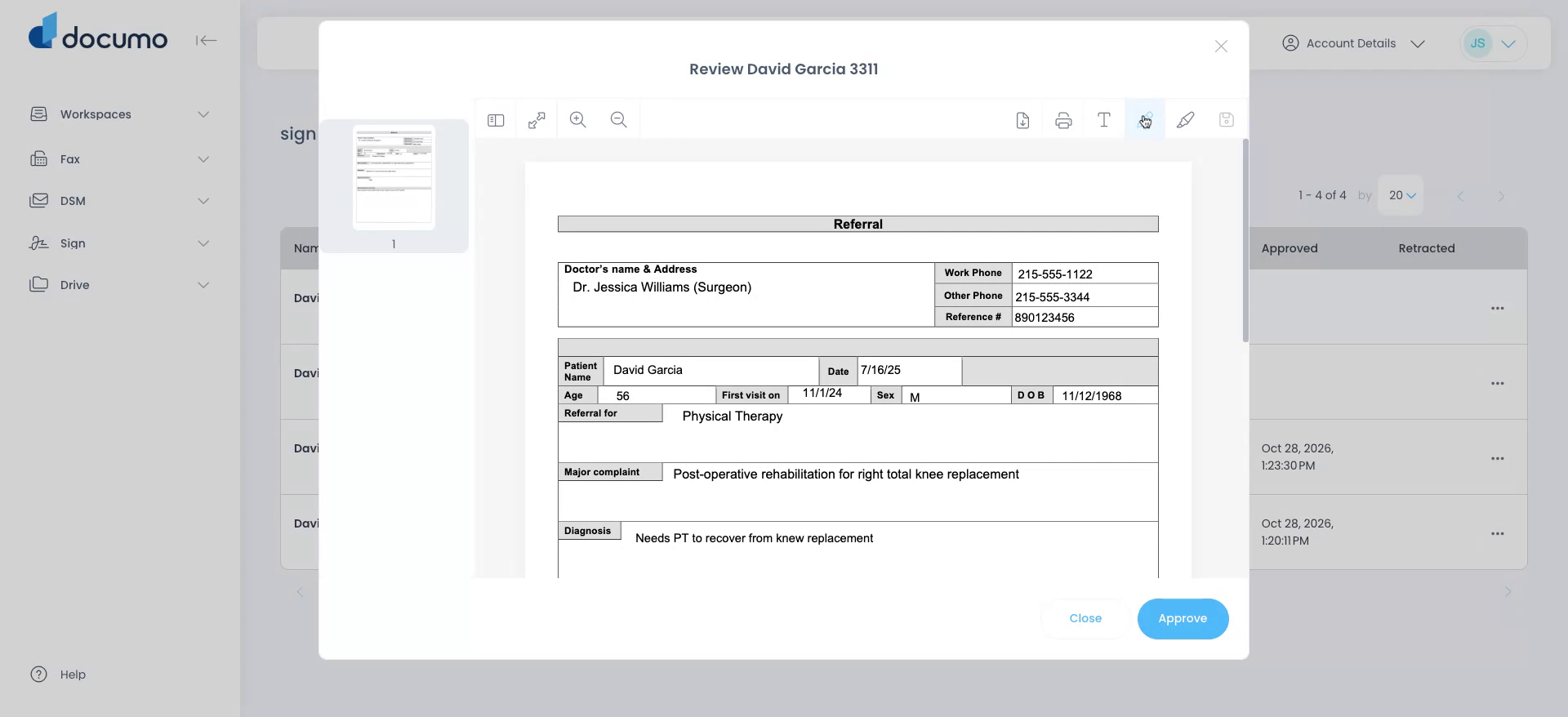
Annotate the Document
Once the document opens in the review interface, the reviewer can use the available annotation tools (such as comments, highlights, or markups) to provide feedback directly on the document, then click Approve.
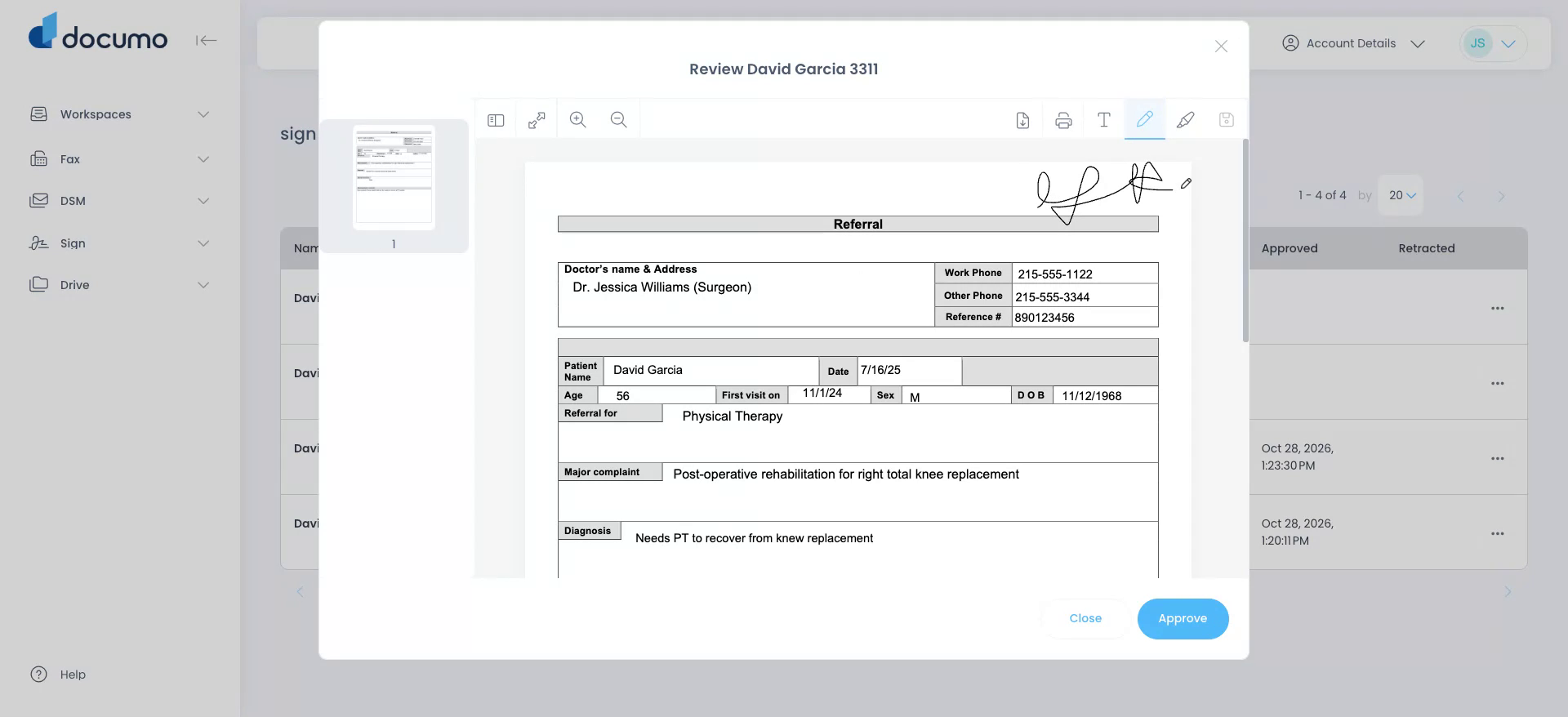
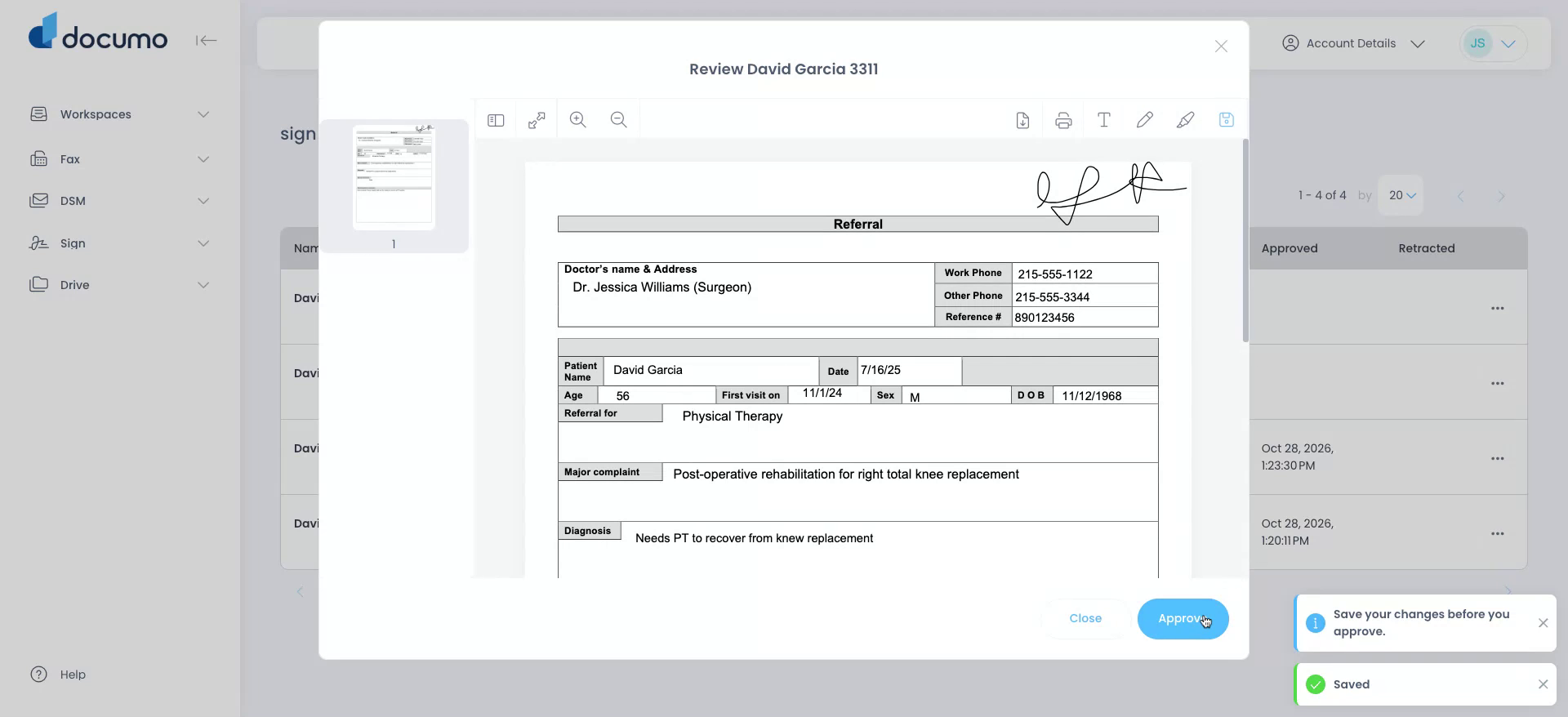
Step 4: Confirm the Document Has Been Approved
You will see in the workspace that the document has been approved.
Step 5: Ensure the Required Workspace Role Is Enabled
For this feature to be available, the workspace role Send for External Review must be enabled, and the user must be assigned to that role.
If you have any other questions, please reach out to support@documo.com.